Start with a public YouTube link
Copy a public YouTube watch, Shorts, or youtu.be URL. Paste it into FakeWorking and choose Open disguised meeting.
Paste a public YouTube link and open it as one muted tile in a floating four-person meeting above the work already on your screen.
← Back to homepage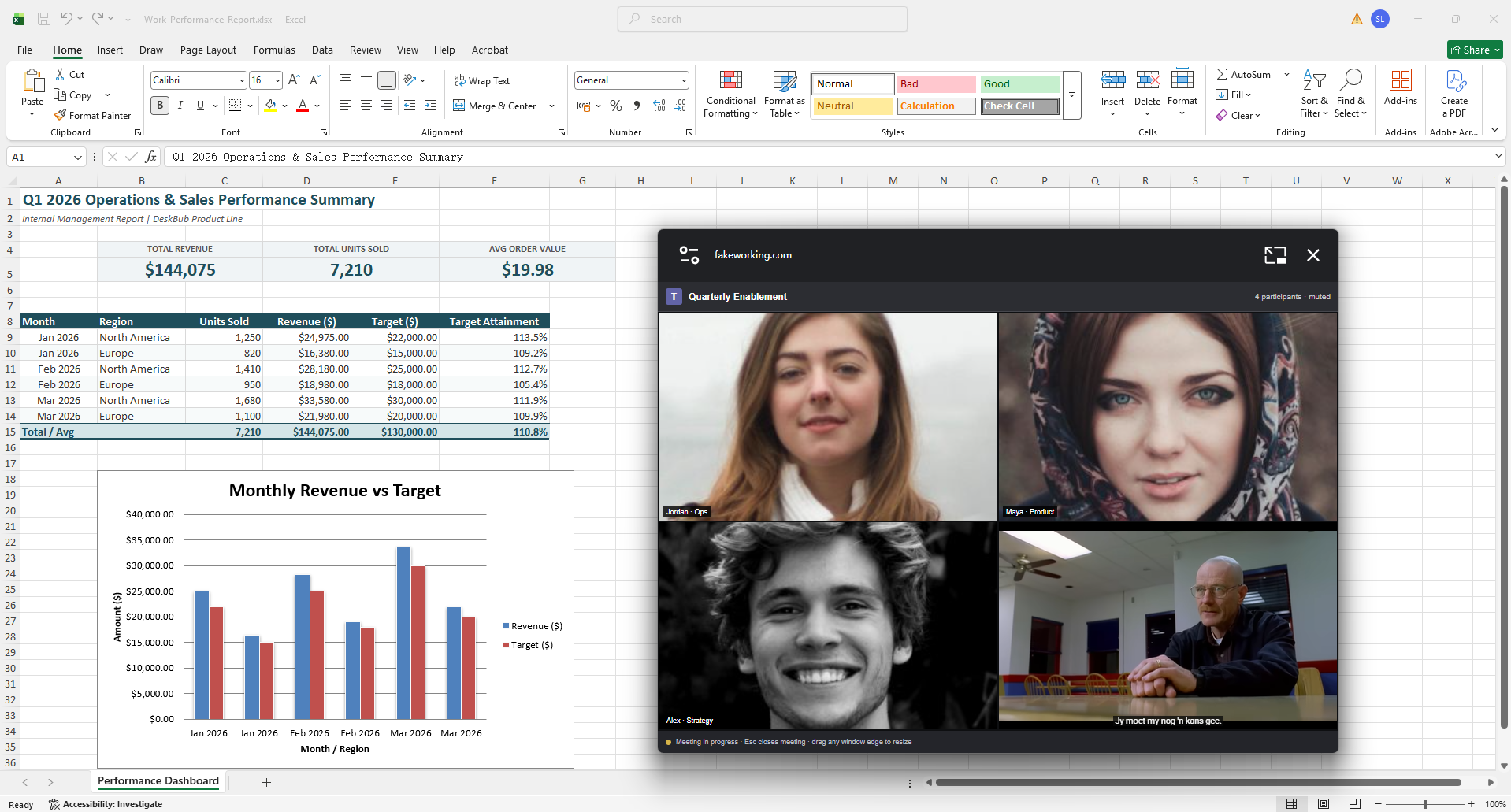
We have all had a slow moment at work and wanted to watch something on YouTube. Opening the full YouTube site can be too obvious, so FakeWorking puts the video inside a movable meeting window above the work already on your screen.
The setup takes one public link. No account, extension, or download is required.
Copy a public YouTube watch, Shorts, or youtu.be URL. Paste it into FakeWorking and choose Open disguised meeting.
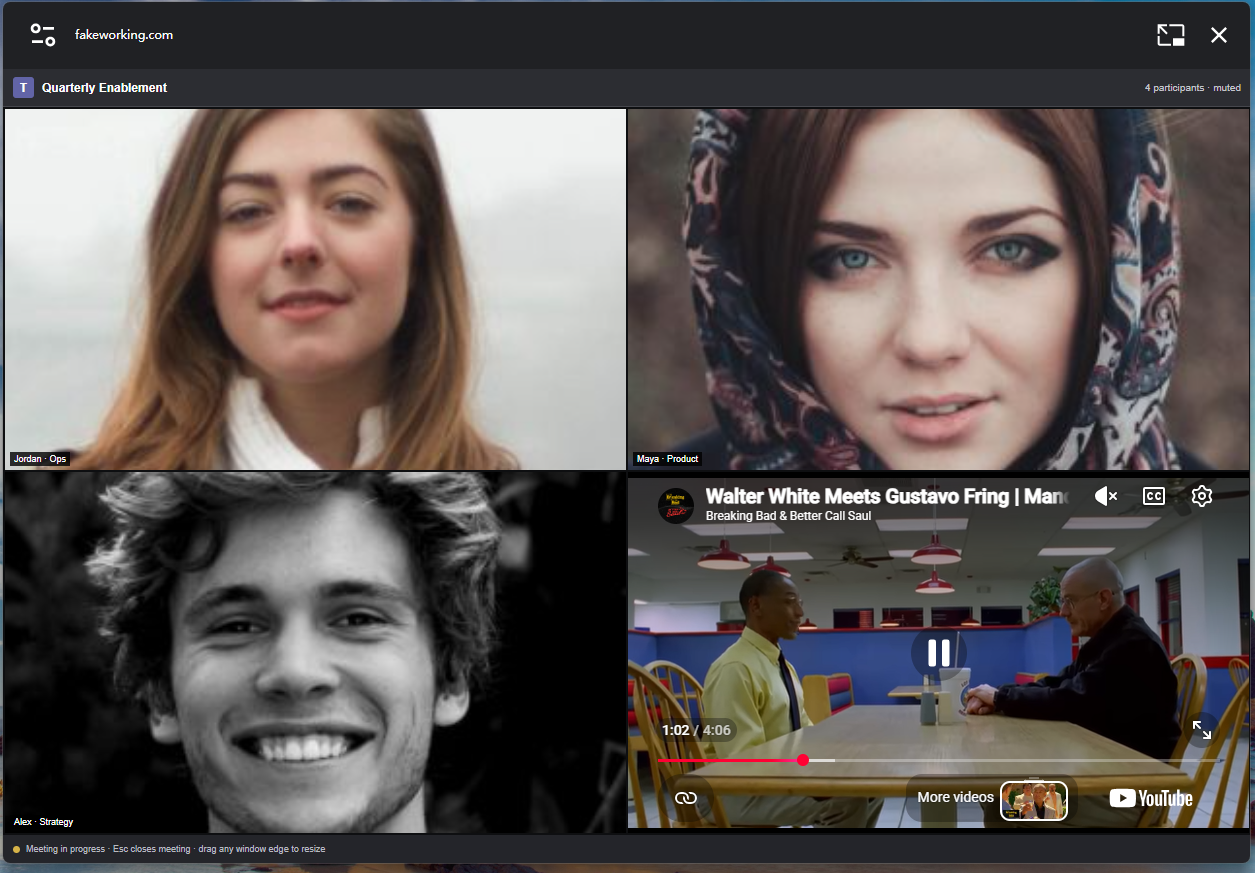
The video opens as the fourth participant in a familiar four-person meeting. Playback starts muted, while the normal YouTube controls remain available inside the video tile.
Drag the meeting over a document, spreadsheet, or browser window and resize it from any edge. The Excel example above shows the meeting in a normal working context.
Press Esc while the meeting has focus to close it immediately. This is a browser-level shortcut for the FakeWorking meeting window, not a system-wide hotkey.
Keep a muted video tile above your document and turn the sound on only when your setup allows it.
Move or resize the meeting while you follow instructions in the document, spreadsheet, or code editor underneath.
Open one public video without surrounding it with the unmistakable YouTube home page and recommendation feed.
No. FakeWorking does not require a sign-up, installation, or browser extension. Paste a supported public YouTube URL on the homepage.
No. Playback starts muted so opening the meeting does not unexpectedly play audio. You remain responsible for when and where you use sound.
While the floating meeting is open, pressing Esc closes that meeting immediately. It is a browser-level shortcut, not a system-wide hotkey.
No. FakeWorking changes the on-screen presentation only. It cannot bypass a blocked network, firewall, workplace policy, or geographic restriction.
Bring a public YouTube link. FakeWorking will handle the work-shaped presentation.